This topic describes how to update an OEM app on Google Play.
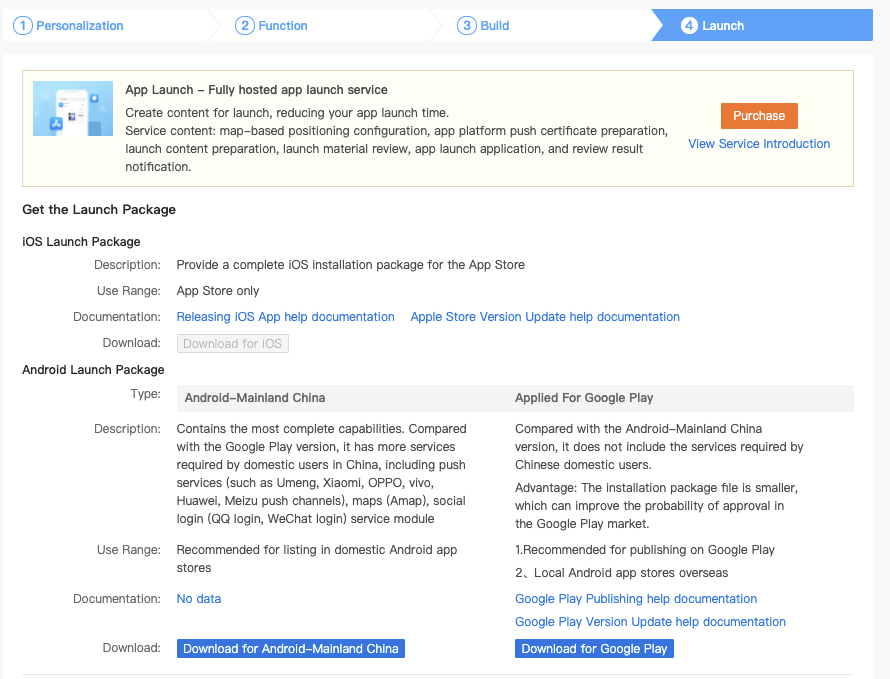
For App update, please log in to the Tuya platform to get the updated application package, and please select the Applied For Google Play package.
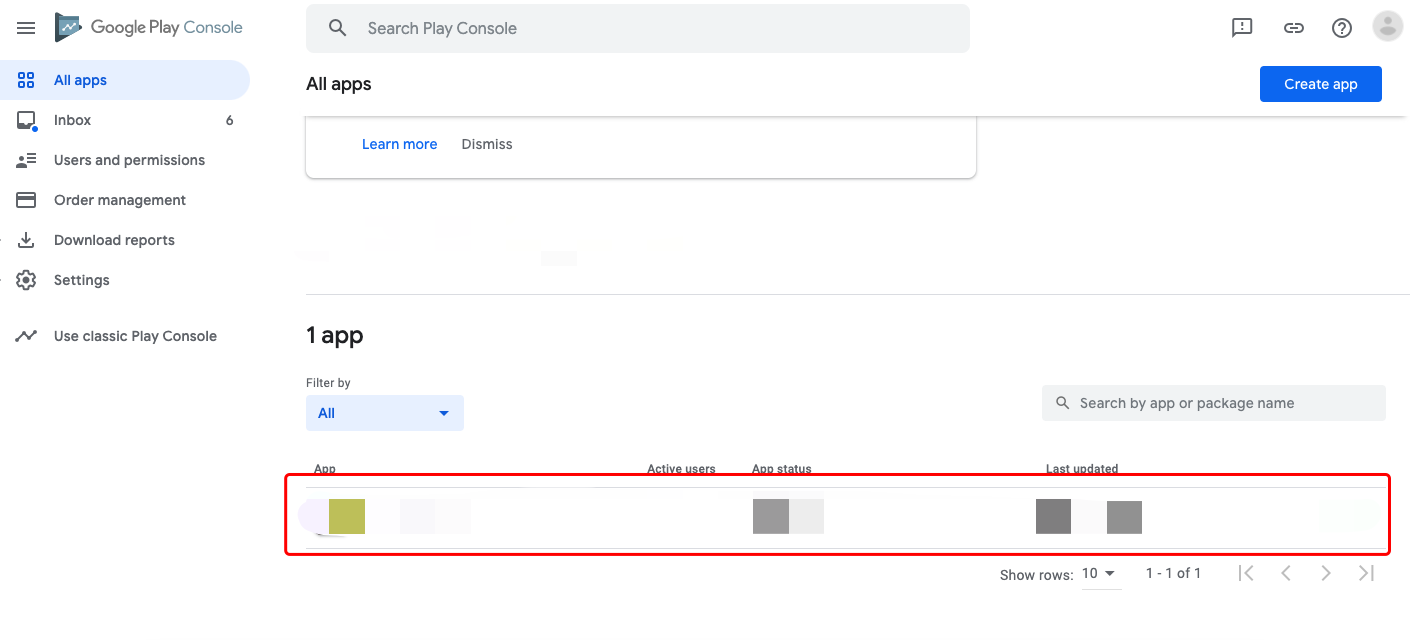
Log in Google Play Console, select the App that needs to be updated, press to go to the next page.
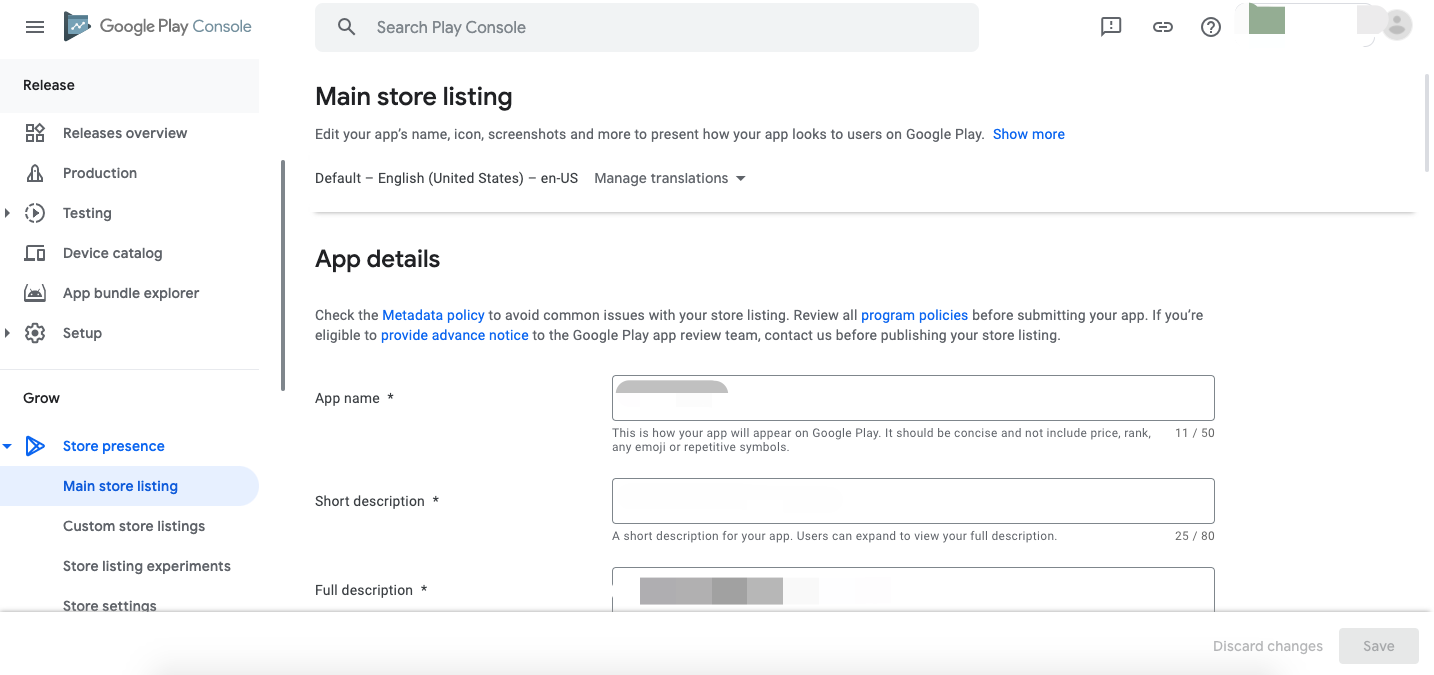
If the content of an active App needs to be modified or updated, you can select Store presence > Store listing to change the pictures or the text, and press the SUBMIT UPDATE.
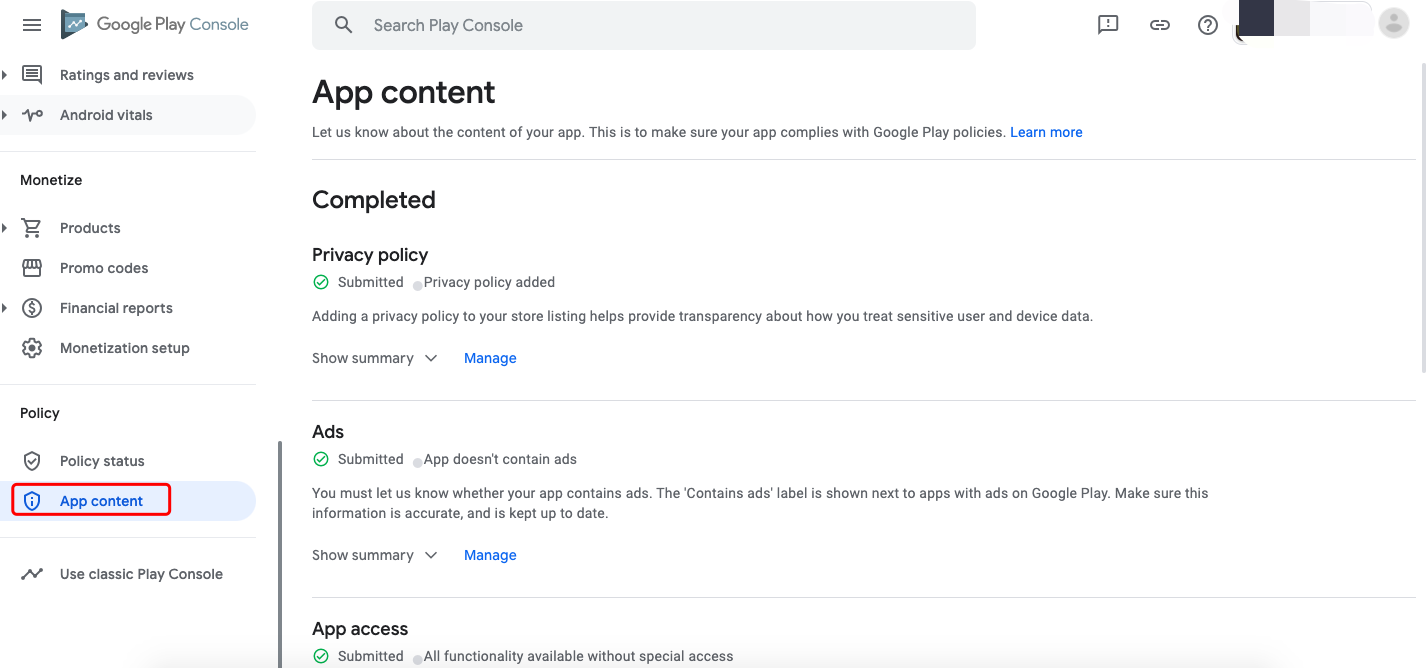
Select App content, check all are filled in. If not, please refer to App cotent to fill in the information.
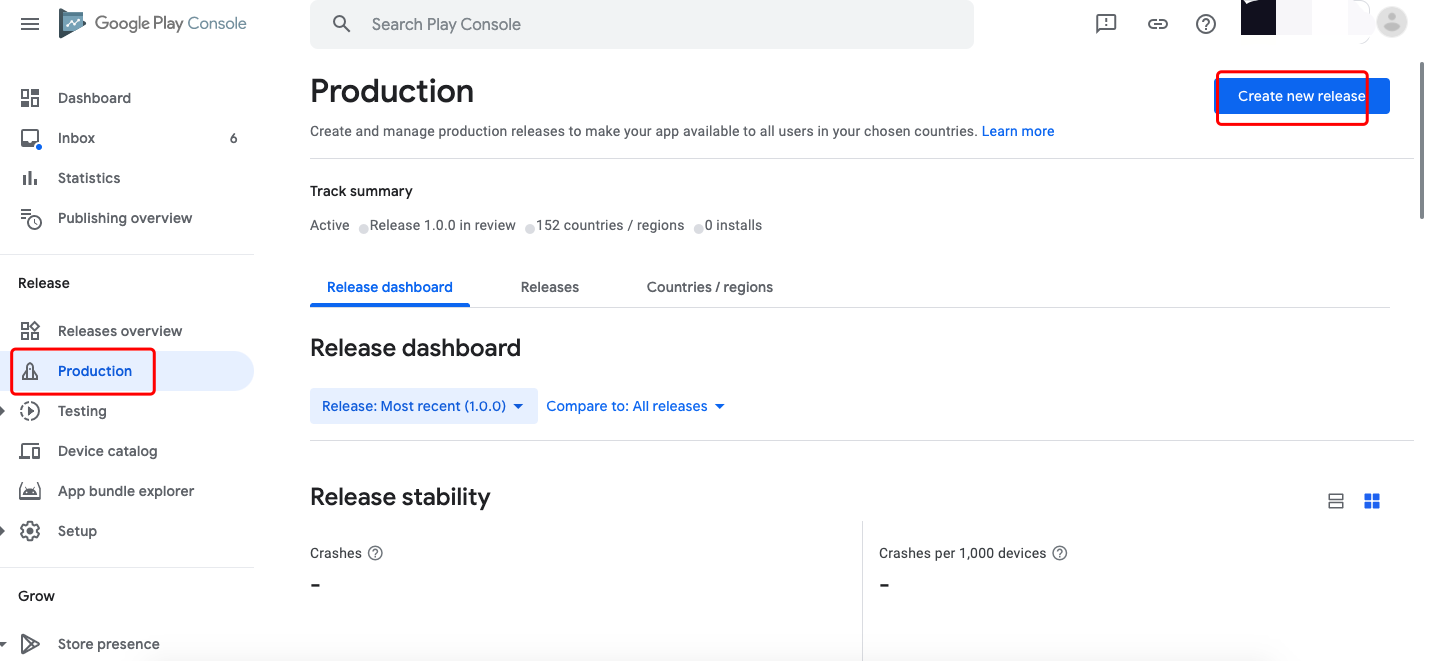
Select Release > production, and press Create new release.
Press Upload and select the received App Package to upload.

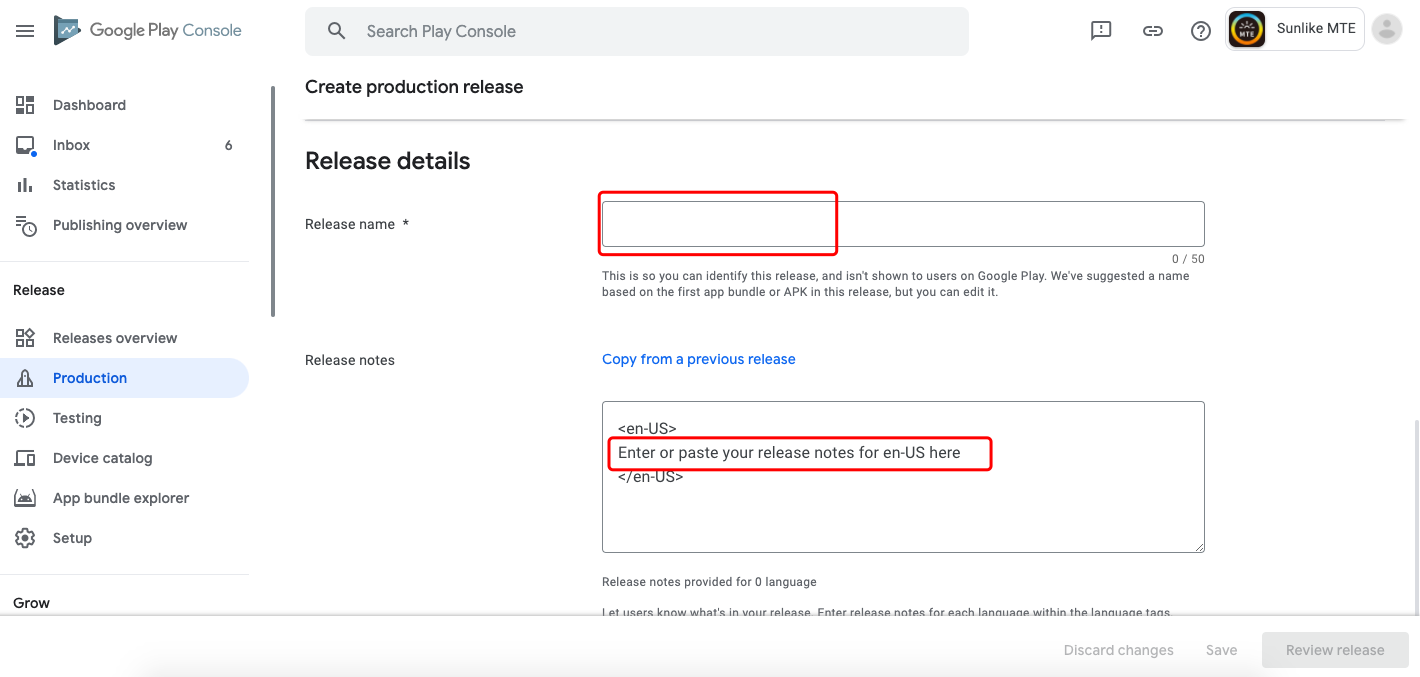
When your App Package is uploaded, enter a release name. You can add +1 to the previous release name.
Scroll down and enter the release notes in the highlighted textbox underWhat’s new in this release?, press Save and Review release in the bottom right corner to save and preview the release.
Please review all the steps above, If there is no problem please pull down the page, click on the bottom right corner of the Start roll-out to Production to release.

If there is an error in the previous step, please select Store presence > App content, then check all are filled in. If not, please refer to App content to fill in the information, and then repeat the previous step.
Google Play has certain policy requirements for application content, and these requirements may continue to increase. We will continue to add information about the content to be submitted for Tuya OEM App.
We are not a news application. You can refer to the following steps to mark:
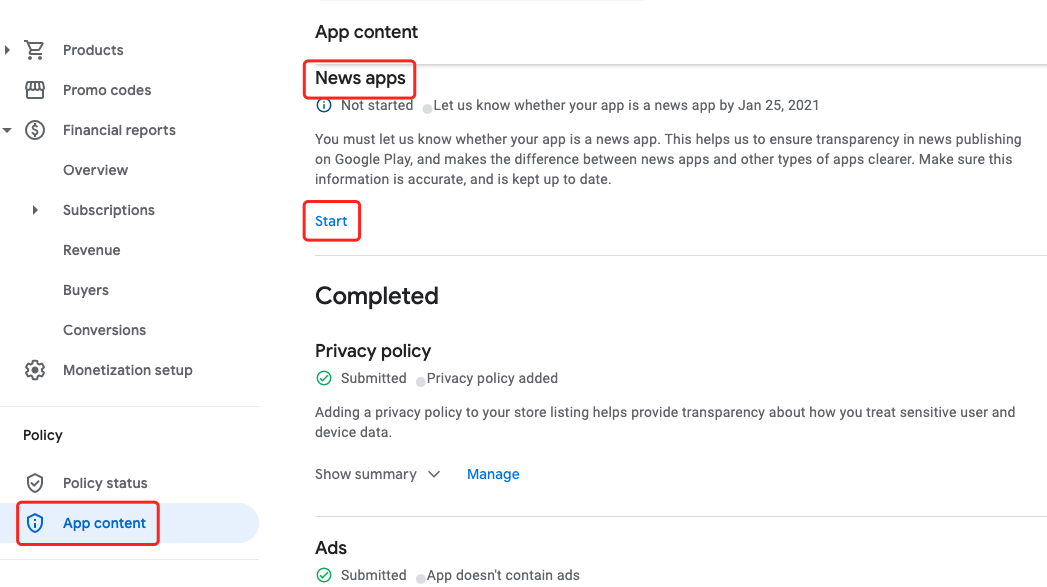
Find News apps in App Content, and click Start.
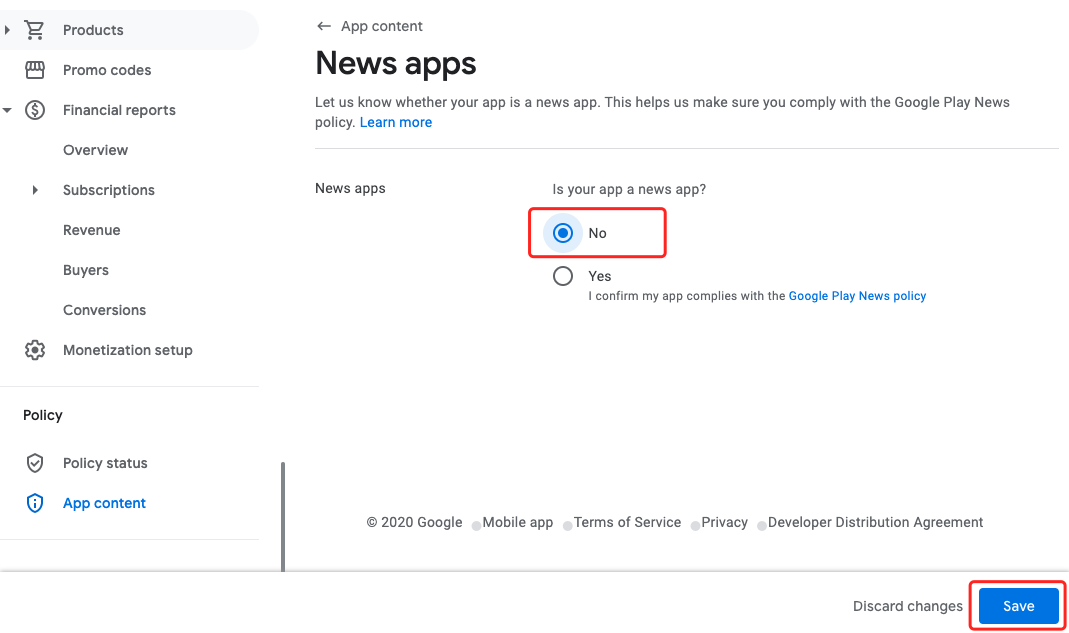
On the News apps page, select No and click the Save button.
On the previous page, check whether the marking of the news application is complete. Under normal circumstances, there will be a description “You told us that your app is not a news app”.
