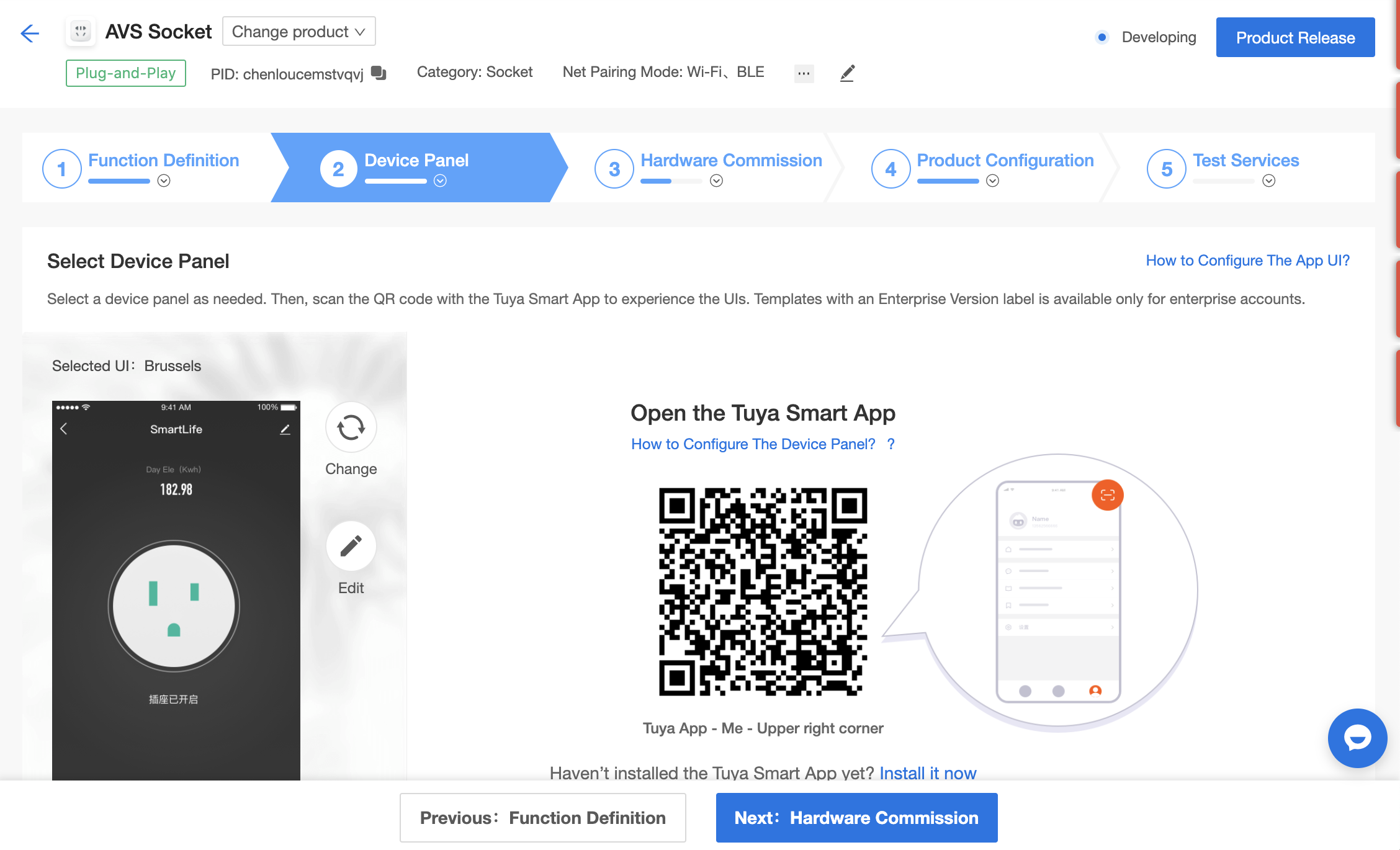
Different interface templates are available for app panel design, including fixed template, custom template, DIY template (app interface generation engine without coding), and debug template.
In the App Panel Design step of creating a product in the IoT Console, you can select the desired template and then edit it.
The configurations supported by each template are different. You can refer to the template introduction for details or scan the QR code with the Tuya Smart app to check if the current template matches your product.
If you want to change the template, click Change and select a new one on the pop-up page. After you click Apply, you can scan the QR code and check the interface.
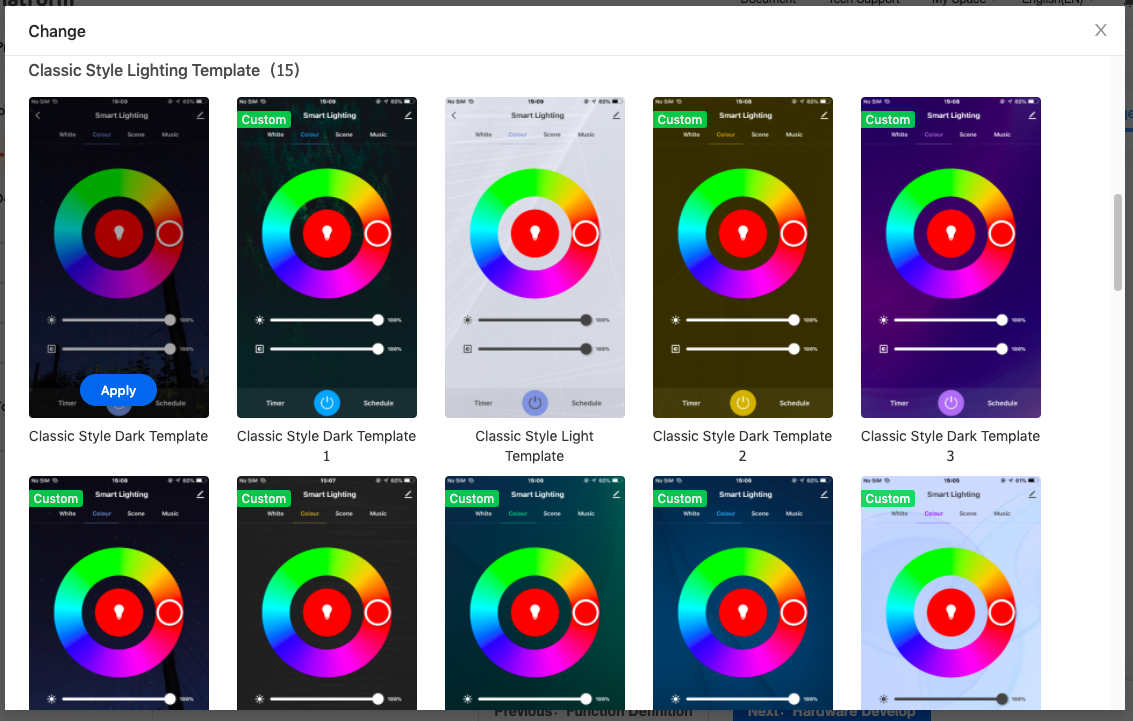
The following interface templates are available:
Different fixed templates are provided to adapt to various product categories. They deliver suitable interfaces corresponding to the standard function configuration (such as, enable or disable).
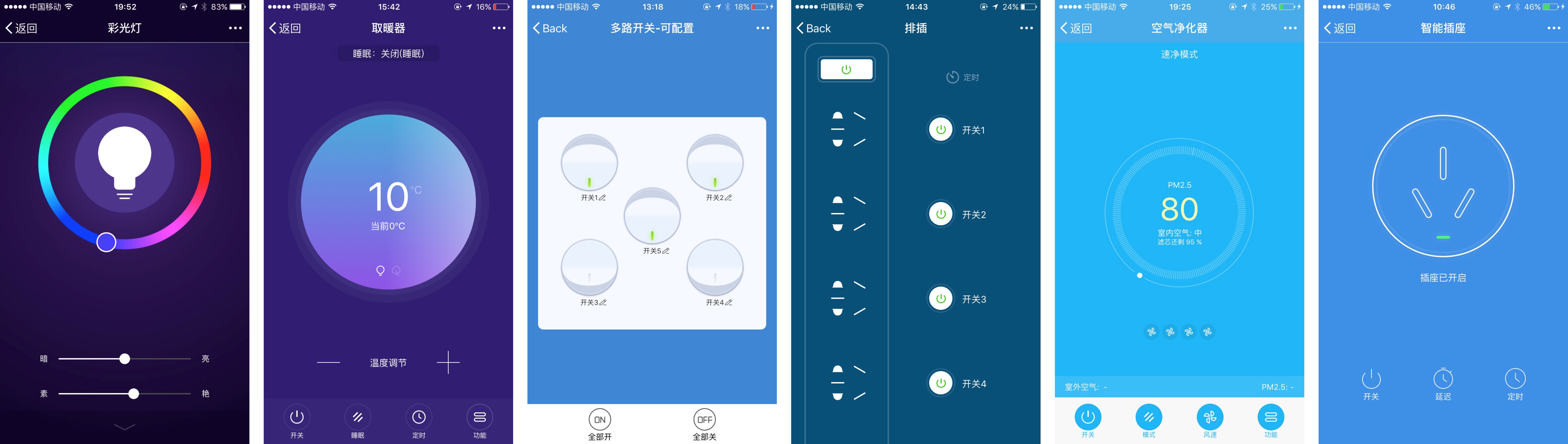
It is recommended to refer to the template introduction and the preview on the app to determine the best interface template for your product. If functions cannot be displayed on the app, check or change the template.
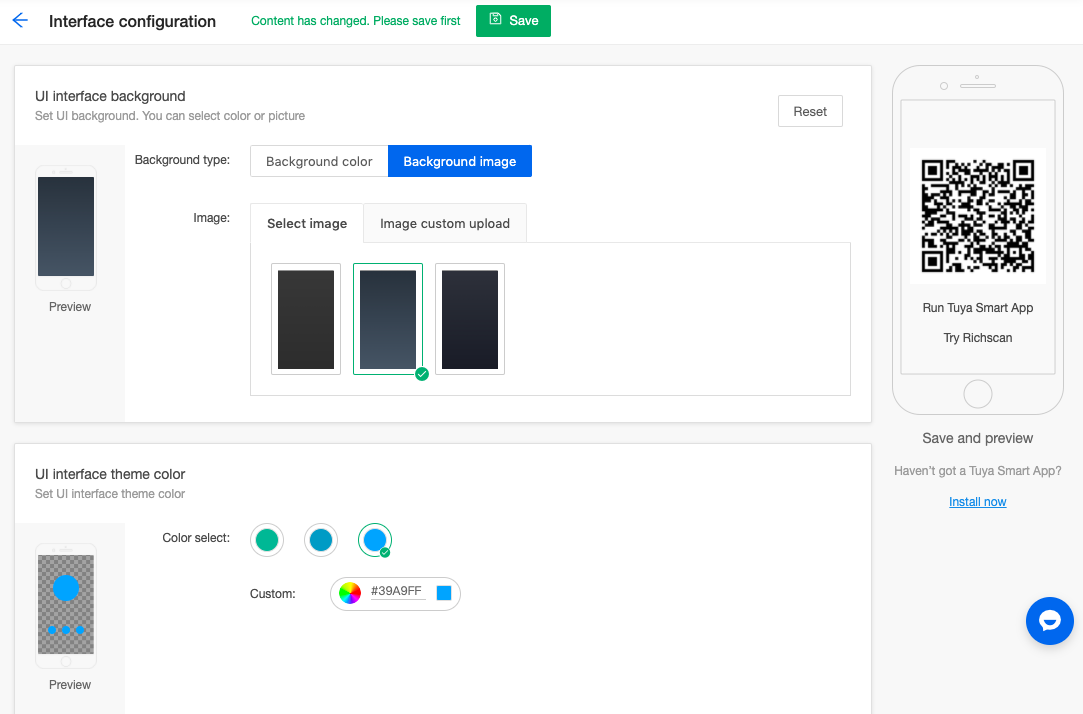
Custom template: after you apply a template, click Edit to customize styles. You can modify the interface styles, such as interface background, theme color and font color, and then click Save.
DIY template: allows you to flexibly set up the app interface. Various styles of component, icon, and background are offered to suit different function points. The interface styles can be changed simply by sorting and setting related elements.
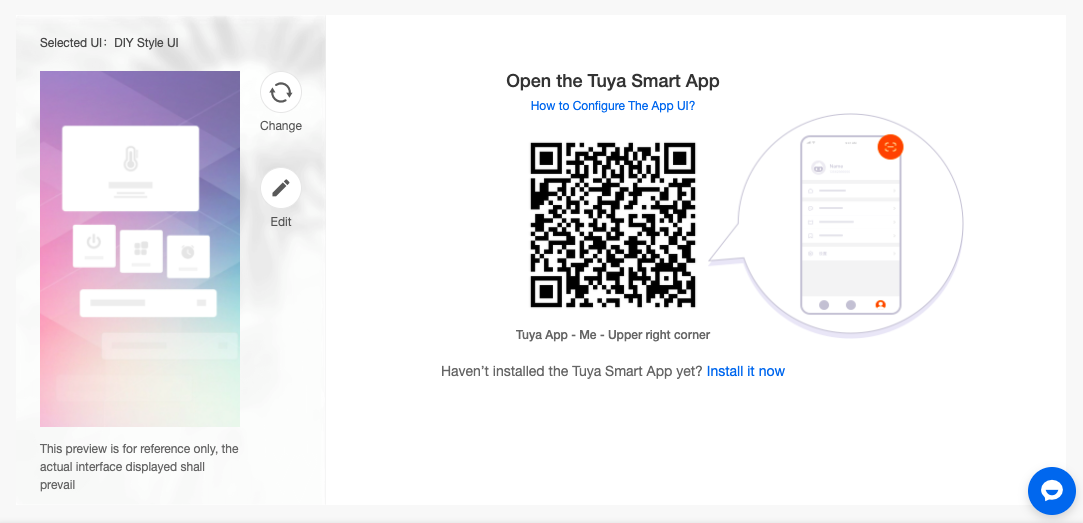
After you apply the DIY template, click Edit to enter the configuration page.
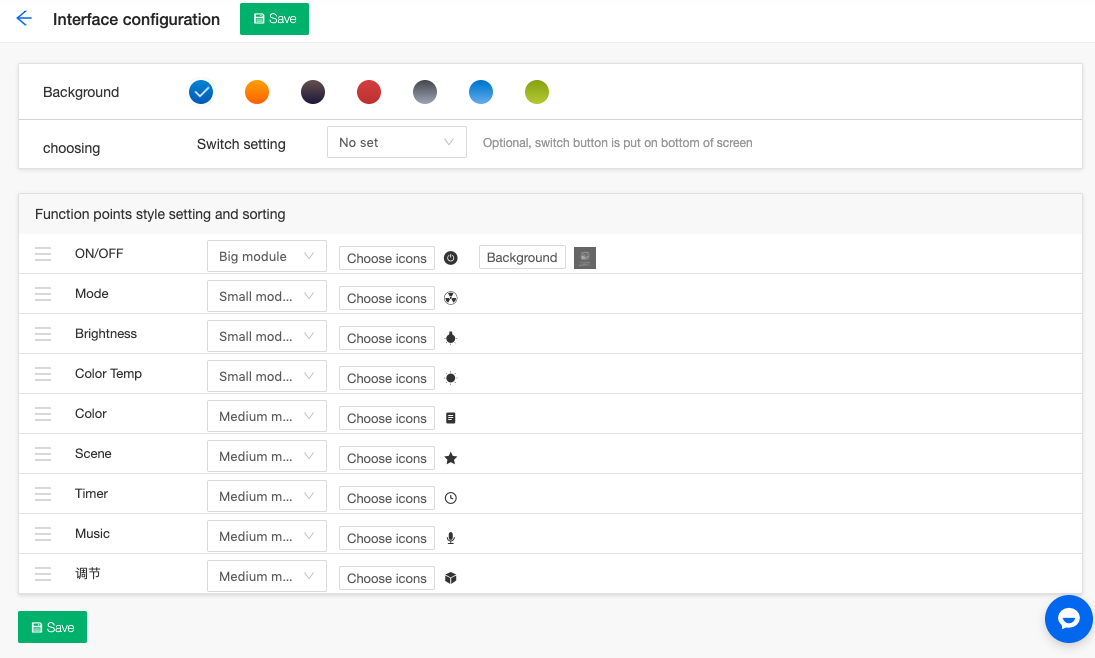
By applying the DIY template, you can set an icon component for each function, and three modules are available for now, big, middle, and small module. They will automatically adapt to different function types that have their own rule to send and transmit commands.
During the DIY template configuration, you need to save the setting first and then preview the interface on the app by scanning the QR code.
Debug template supports checking communication log. After you apply the debug template, click Next: Hardware Develop.
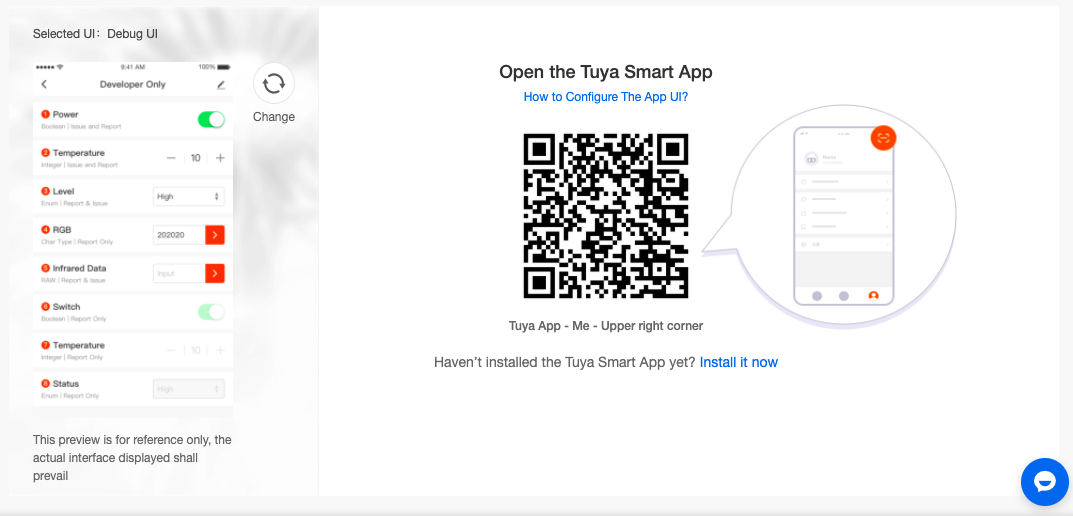
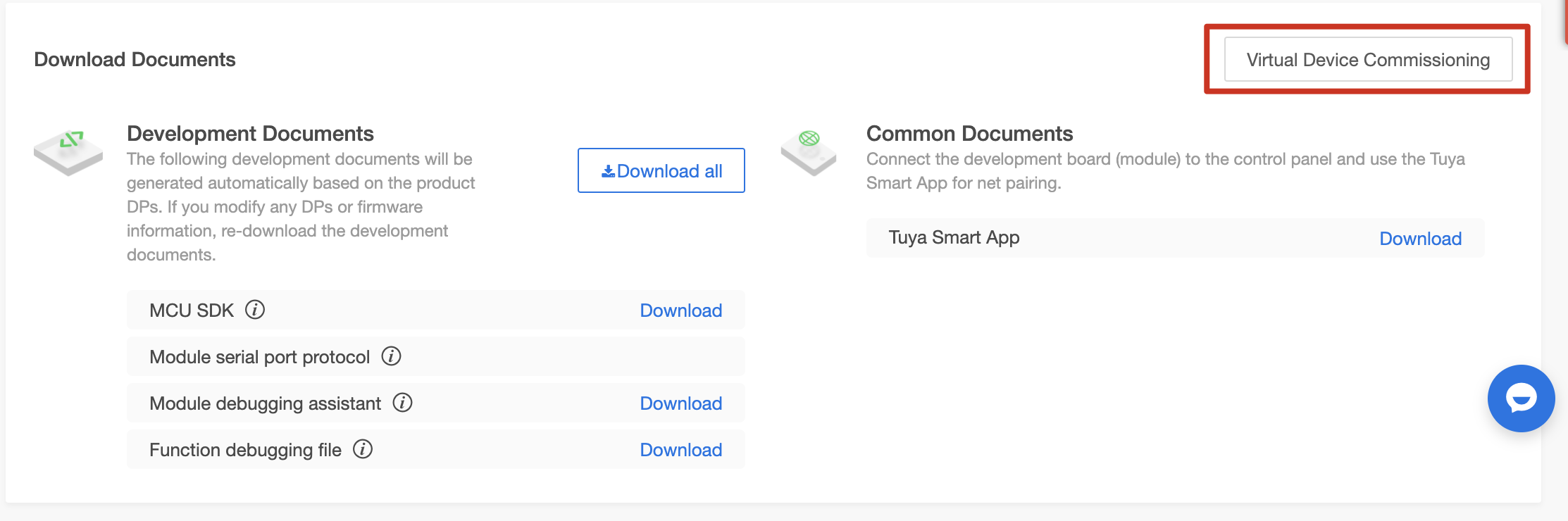
Click Virtual Device Commissioning, and scan the QR code with Tuya Smart app to proceed with online debugging.
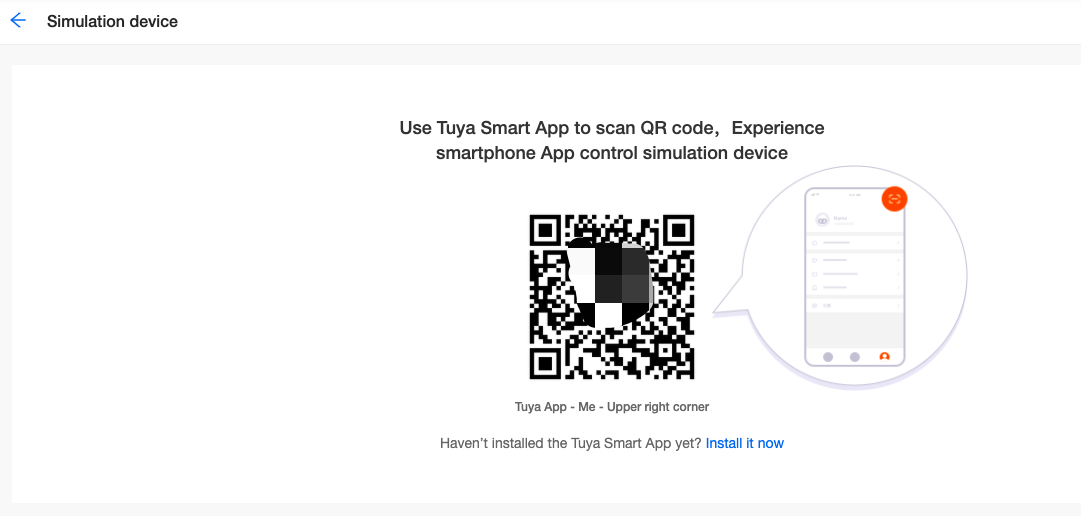
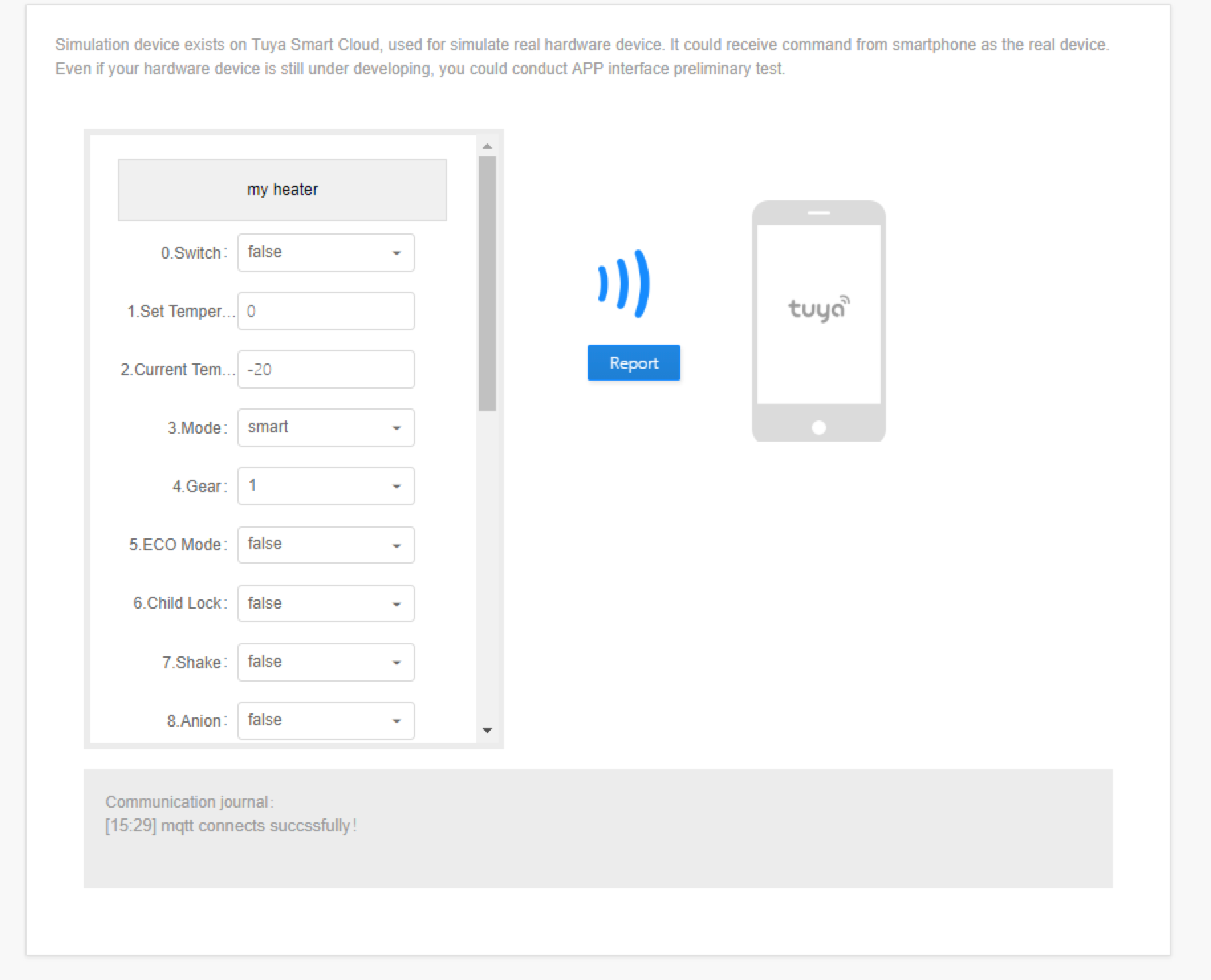
Check the communication log on the virtual panel. Debug template can also be used for testing your products. It supports displaying all product functions and function types. But it is not recommended to release this debug interface to users.