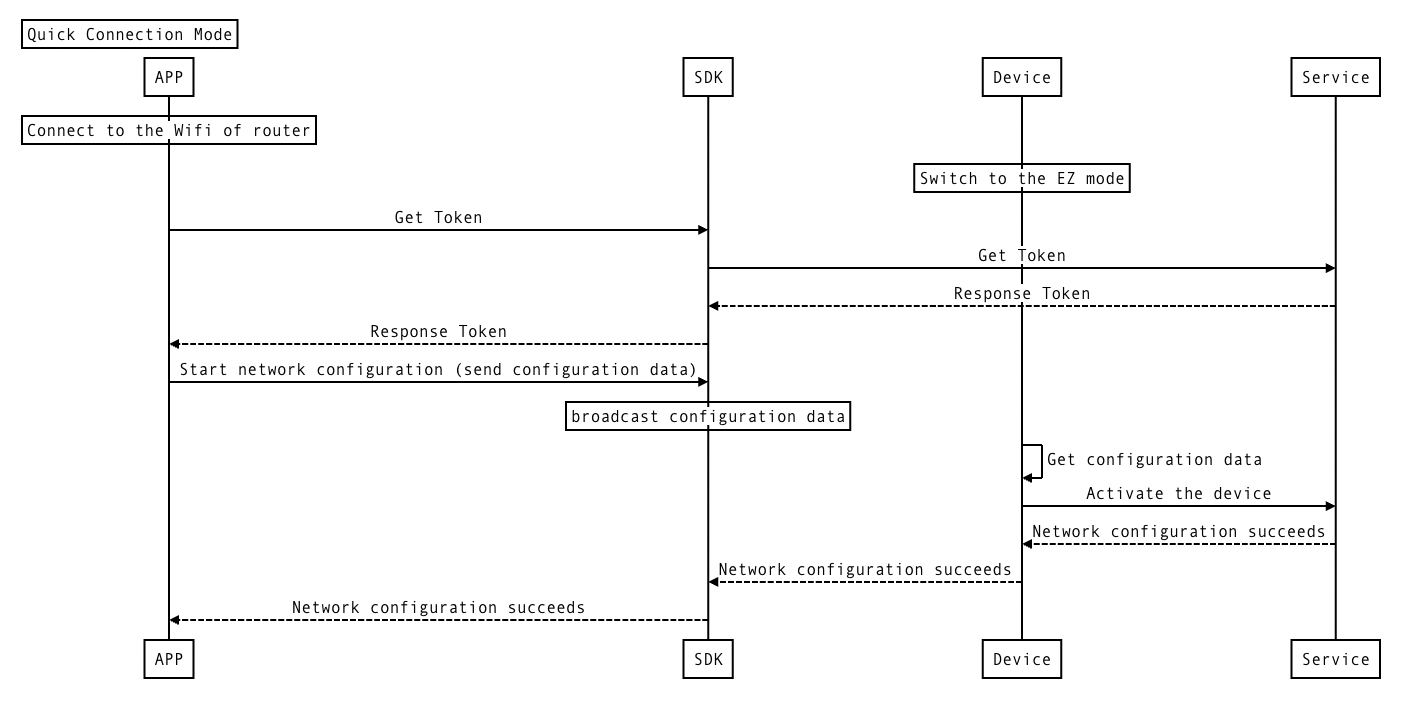
The network configuration modes supported by Tuya SDK including:
| Terms | Description |
|---|---|
| Wi-Fi device | The device that use a Wi-Fi module to connect the router, and interact with APP and cloud. |
| Pairing through Wi-Fi easy connect | Also known as the quick connection mode, the APP packs the network data packets into the designated area of the 802.11 data packets and sends them to the surrounding environment. The Wi-Fi module of the smart device is in mingled status and monitors and captures all the packets in the network. According to the agreed protocol data format, it can parse out the network information packet sent by the APP. |
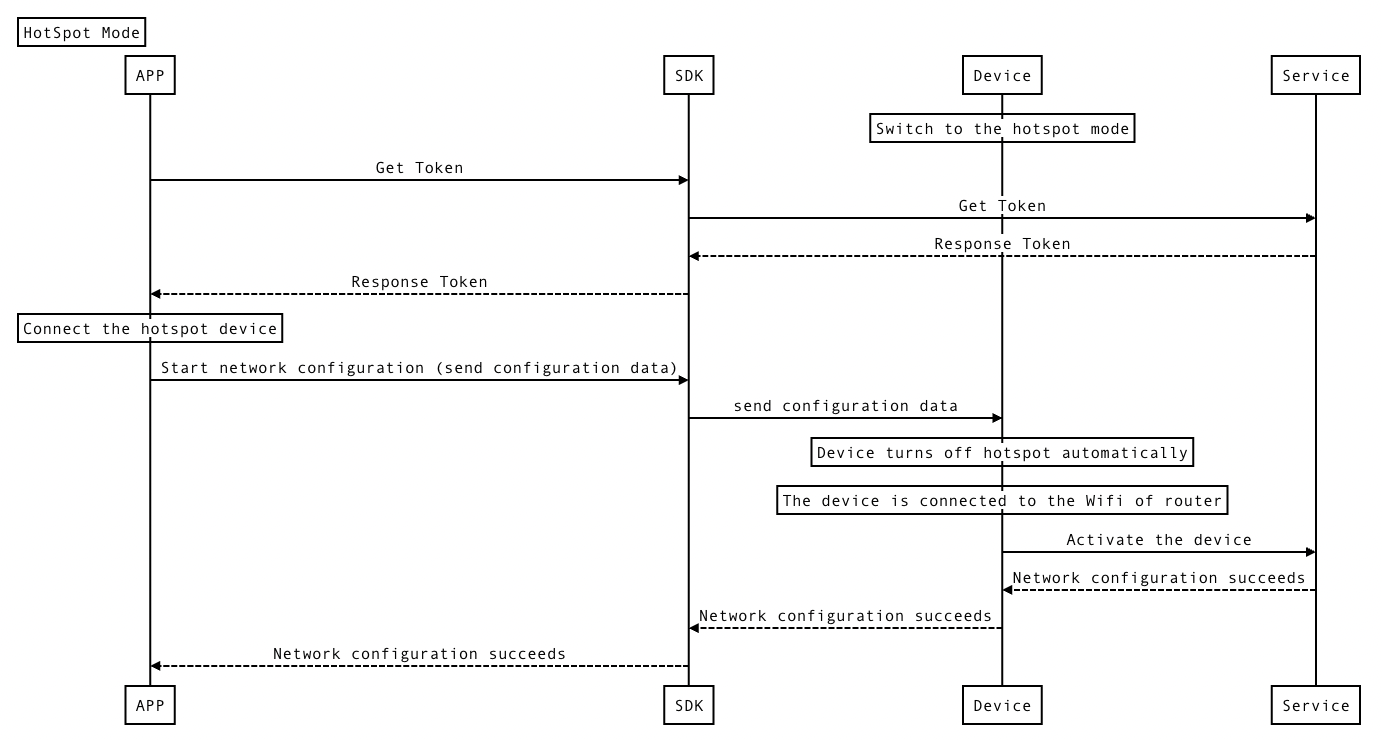
| Pairing through hotspot | Also known as hotspot mode, the mobile phone connects the smart device’s hotspot. The two parties establish a Socket connection to exchange data through the agreed port. |
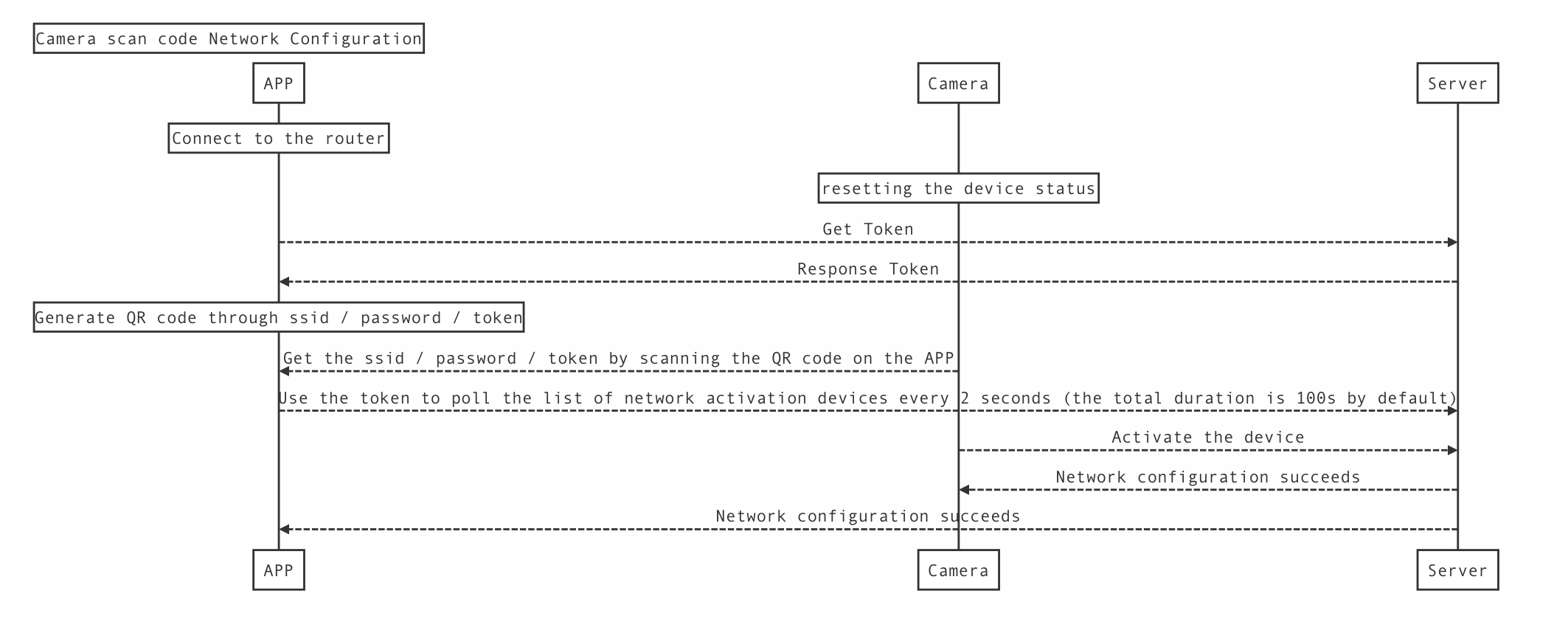
| Camera scan code configuration network | The camera device obtains the configuration data information by scanning the QR code on the APP. |
| Wired devices | Devices connected to the router via a wired network, such as Zigbee wired gateway, wired camera, etc. |
| sub-device | Devices that interact with APP and cloud data through gateways, such as Zigbee sub-devices |
| Zigbee | Zigbee technology is a short-range, low-complexity, low-power, low-speed, low-cost two-way wireless communication technology. It is mainly used for data transmission between various electronic devices with short distances, low power consumption, and low transmission rates, as well as typical applications with periodic data, intermittent data, and low response time data transmission. |
| Zigbee gateway | The device that integrates the coordinator and WiFi functions in the Zigbee network is responsible for the establishment of the Zigbee network and the storage of data information. |
| Zigbee sub-device | Routing or terminal equipment in Zigbee network, responsible for data forwarding or terminal control response. |
Before developing a Wi-Fi device network config, you need to understand the basic logic of TuyaHomeSDK, and have used TuyaHomeSdk to complete the basic operations such as logging in and creating a home.
ActivatorBuilder builder = new ActivatorBuilder()
        .setSsid(ssid)
        .setContext(context)
        .setPassword(password)
        .setActivatorModel(ActivatorModelEnum.TY_EZ)
        .setTimeOut(timeout)
        .setToken(token)
        .setListener(new ITuyaSmartActivatorListener() {

                @Override
                public void onError(String errorCode, String errorMsg) {

                }

                @Override
                public void onActiveSuccess(DeviceBean devResp) {
                    //If multiple devices are activated at the same time, they will be called back multiple times
                }

                @Override
                public void onStep(String step, Object data) {

                }
            }
        ));
Parameters
| Parameters | Description |
|---|---|
| token | Activation key required for Configuration |
| context | context |
| ssid | WiFi ssid |
| password | WiFi password |
| activatorModel | Configuration Mode, EZ Mode: ActivatorModelEnum.TY_EZ |
| timeout | Configuration timeout, default setting is 100s, unit is second |
Get Network Configuration Token
Before the Wi-Fi network configuration, the SDK needs to obtain the network configuration Token from the Tuya Cloud.
The term of validity of Token is 10 minutes, and the Token becomes invalid once the network configuration succeeds.
A new Token has to be obtained if you have to reconfigure the network.
TuyaHomeSdk.getActivatorInstance().getActivatorToken(homeId,
        new ITuyaActivatorGetToken() {

            @Override
            public void onSuccess(String token) {

            }

            @Override
            public void onFailure(String s, String s1) {

            }
        });
Parameters
| Parameters | Description |
|---|---|
| homeId | Family ID, please refer to the family management section for details |
ITuyaActivator mTuyaActivator = TuyaHomeSdk.getActivatorInstance().newMultiActivator(builder);
//Start configuration
mTuyaActivator.start();
//Stop configuration
mTuyaActivator.stop();
//Exit the page to destroy some cache data and monitoring data.
mTuyaActivator.onDestroy();
ActivatorBuilder builder = new ActivatorBuilder()
        .setContext(context)
        .setSsid(ssid)
        .setPassword(password)
        .setActivatorModel(ActivatorModelEnum.TY_AP)
        .setTimeOut(timeout)
        .setToken(token)
        .setListener(new ITuyaSmartActivatorListener() {

                @Override
                public void onError(String errorCode, String errorMsg) {

                }

                @Override
                public void onActiveSuccess(DeviceBean devResp) {

                }

                @Override
                public void onStep(String step, Object data) {

                }
            }
        ));
Parameters
| Parameters | Description |
|---|---|
| token | Activation key required for Configuration |
| context | context |
| ssid | Wi-Fi ssid |
| password | Wi-Fi password |
| activatorModel | Configuration Mode, AP Mode: ActivatorModelEnum.TY_AP |
| timeout | Configuration timeout, default setting is 100s, unit is second |
Get Network Configuration Token
Before the Wi-Fi network configuration, the SDK needs to obtain the network configuration Token from the Tuya Cloud.
The term of validity of Token is 10 minutes, and the Token becomes invalid once the network configuration succeeds.
A new Token has to be obtained if you have to reconfigure the network.
TuyaHomeSdk.getActivatorInstance().getActivatorToken(homeId,
        new ITuyaActivatorGetToken() {

            @Override
            public void onSuccess(String token) {

            }

            @Override
            public void onFailure(String s, String s1) {

            }
        });
Parameters
| Parameters | Description |
|---|---|
| homeId | Family ID, please refer to the family management section for details |
ITuyaActivator mTuyaActivator = TuyaHomeSdk.getActivatorInstance().newActivator(builder);
//Start configuration
mTuyaActivator.start();
//Stop configuration
mTuyaActivator.stop();
//Exit the page to destroy some cache data and monitoring data.
mTuyaActivator.onDestroy();
Use the camera device to scan the QR code of the APP to transfer the Configuration information to active and bind the camera device.
TuyaCameraActivatorBuilder builder = new TuyaCameraActivatorBuilder()
         .setContext(context)
         .setSsid(ssid)
         .setPassword(password)
         .setToken(token)
         .setTimeOut(timeout)
         .setListener(new ITuyaSmartCameraActivatorListener() {
             @Override
             public void onQRCodeSuccess(String qrcodeUrl) {
                 //Return URL link to generate QR code
             }

             @Override
             public void onError(String errorCode, String errorMsg) {
                 //Network configuration failed
             }

             @Override
             public void onActiveSuccess(DeviceBean devResp) {
                //Network configuration succeed
             }
         }));
Parameters
| Parameters | Description |
|---|---|
| token | Activation key required for Configuration |
| context | context |
| ssid | WiFi ssid |
| password | WiFi password |
| timeout | Configuration timeout, default setting is 100s, unit is second |
Get Network Configuration Token
Before the Wi-Fi network configuration, the SDK needs to obtain the network configuration Token from the Tuya Cloud.
The term of validity of Token is 10 minutes, and the Token becomes invalid once the network configuration succeeds.
A new Token has to be obtained if you have to reconfigure the network.
TuyaHomeSdk.getActivatorInstance().getActivatorToken(homeId,
        new ITuyaActivatorGetToken() {

            @Override
            public void onSuccess(String token) {

            }

            @Override
            public void onFailure(String s, String s1) {

            }
        });
Parameters
| Parameters | Description |
|---|---|
| homeId | Family ID, please refer to the family management section for details |
ITuyaCameraDevActivator mTuyaActivator = TuyaHomeSdk.getActivatorInstance().newCameraDevActivator(builder);
mTuyaActivator.createQRCode(); //Return via onQRCodeSuccess callback
Examples: Need to implement zxing (implementation com.google.zxing:core:3.2.1)
public static Bitmap createQRCode(String url, int widthAndHeight)
            throws WriterException {
        Hashtable hints = new Hashtable();
        hints.put(EncodeHintType.CHARACTER_SET, "utf-8");
        hints.put(EncodeHintType.MARGIN,0);
        BitMatrix matrix = new MultiFormatWriter().encode(url,
                BarcodeFormat.QR_CODE, widthAndHeight, widthAndHeight, hints);

        int width = matrix.getWidth();
        int height = matrix.getHeight();
        int[] pixels = new int[width * height];

        for (int y = 0; y < height; y++) {
            for (int x = 0; x < width; x++) {
                if (matrix.get(x, y)) {
                    pixels[y * width + x] = BLACK;
                }
            }
        }
        Bitmap bitmap = Bitmap.createBitmap(width, height,
                Bitmap.Config.ARGB_8888);
        bitmap.setPixels(pixels, 0, width, 0, 0, width, height);
        return bitmap;
    }
mTuyaActivator.start();
mTuyaActivator.stop();
mTuyaActivator.onDestory();
A wired device refers to the connection of the router through a wired network, without entering the hotspot name and password of the router during the network configuration. The Zigbee cable gateway is used to introduce the cable configuration network business process.
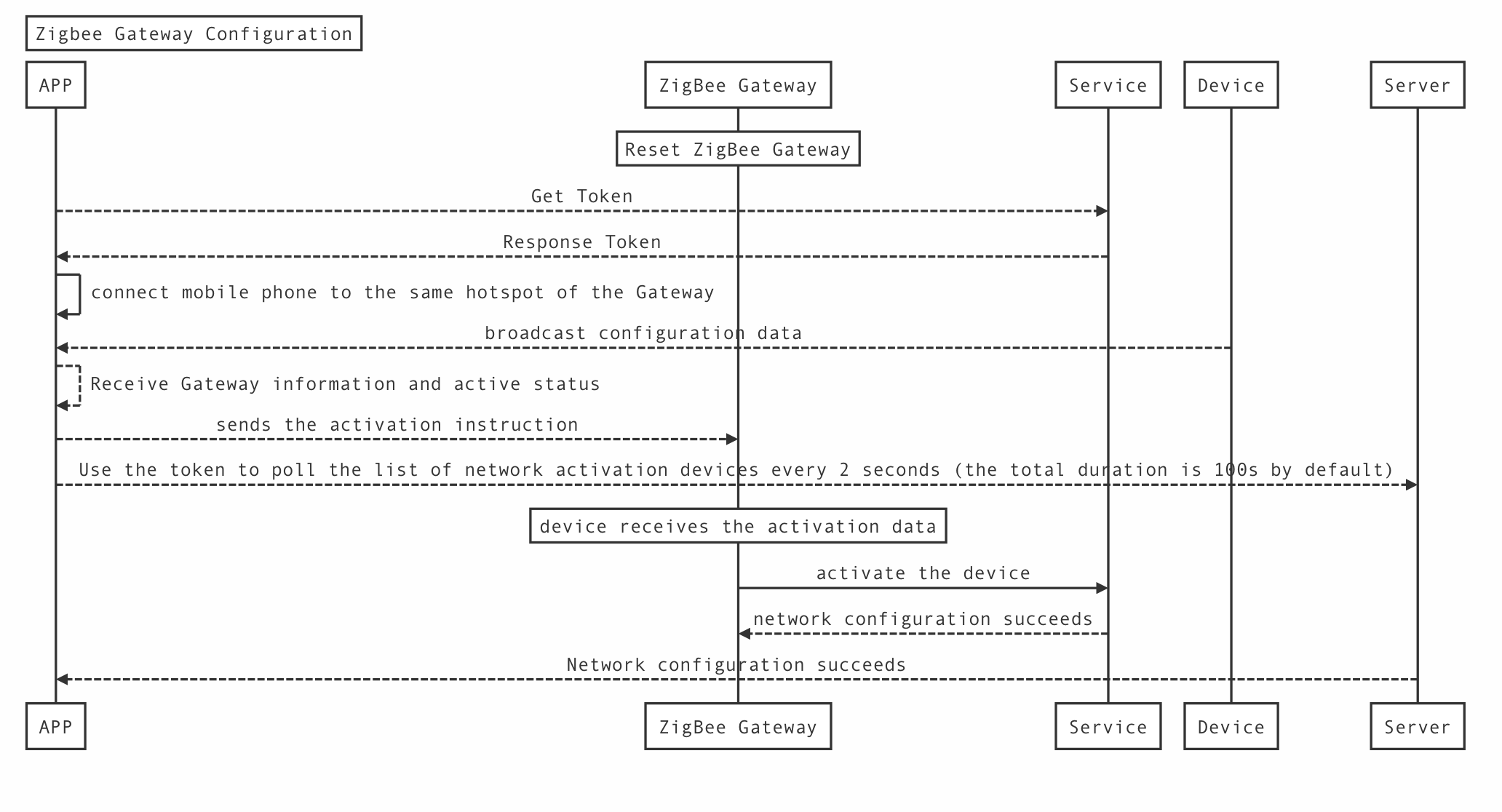
Tuya SDK provides the function of discovering wired devices. You should register the notification of the wired device to get device information. Before obtaining the device, the phone must be connected to the same network as the device.
ITuyaGwSearcher mTuyaGwSearcher = TuyaHomeSdk.getActivatorInstance().newTuyaGwActivator().newSearcher();
        mTuyaGwSearcher.registerGwSearchListener(new IGwSearchListener() {
            @Override
            public void onDevFind(HgwBean hgwBean) {

            }
        });
Parameters
| Parameters | Description |
|---|---|
| hgwBean | gateway data entity discovered |
ITuyaActivator mITuyaActivator = TuyaHomeSdk.getActivatorInstance().newGwActivator(
        new TuyaGwActivatorBuilder()
            .setToken(token)
            .setTimeOut(timeout)
            .setContext(context)
            .setHgwBean(hgwBean)
            .setListener(new ITuyaSmartActivatorListener() {

                    @Override
                    public void onError(String errorCode, String errorMsg) {

                    }

                    @Override
                    public void onActiveSuccess(DeviceBean devResp) {

                    }

                    @Override
                    public void onStep(String step, Object data) {

                    }
            }
        ));
Parameters
| Parameters | Description |
|---|---|
| token | Activation key required for Configuration |
| timeout | Configuration timeout, the default setting is 100s, the unit is second |
| context | context |
| hgwBean | the discovered gateway data entity |
ITuyaActivator mITuyaActivator = TuyaHomeSdk.getActivatorInstance().newGwActivator(
        new TuyaGwActivatorBuilder()
            .setToken(token)
            .setTimeOut(timeout)
            .setContext(context)
            .setListener(new ITuyaSmartActivatorListener() {

                    @Override
                    public void onError(String errorCode, String errorMsg) {

                    }

                    @Override
                    public void onActiveSuccess(DeviceBean devResp) {

                    }

                    @Override
                    public void onStep(String step, Object data) {

                    }
            }
        ));
Parameters
| Parameters | Description |
|---|---|
| token | Activation key required for Configuration |
| timeout | Configuration timeout, the default setting is 100s, the unit is second |
| context | context |
Get network configuration token
Before the Wi-Fi network configuration, the SDK needs to obtain the network configuration Token from the Tuya Cloud.
The term of validity of Token is 10 minutes, and the Token becomes invalid once the network configuration succeeds.
A new Token has to be obtained if you have to reconfigure the network.
TuyaHomeSdk.getActivatorInstance().getActivatorToken(homeId,
        new ITuyaActivatorGetToken() {

            @Override
            public void onSuccess(String token) {

            }

            @Override
            public void onFailure(String s, String s1) {

            }
        });
Parameters
| Parameters | Description |
|---|---|
| homeId | Family ID, please refer to the family management section for details |
ITuyaActivator mITuyaActivator = TuyaHomeSdk.getActivatorInstance().newGwActivator(builder);
//Start the network pairing
mITuyaActivator.start()
//Stop the network pairing
mITuyaActivator.stop()
//What to do if the user leaves the page.
mITuyaActivator.onDestroy()
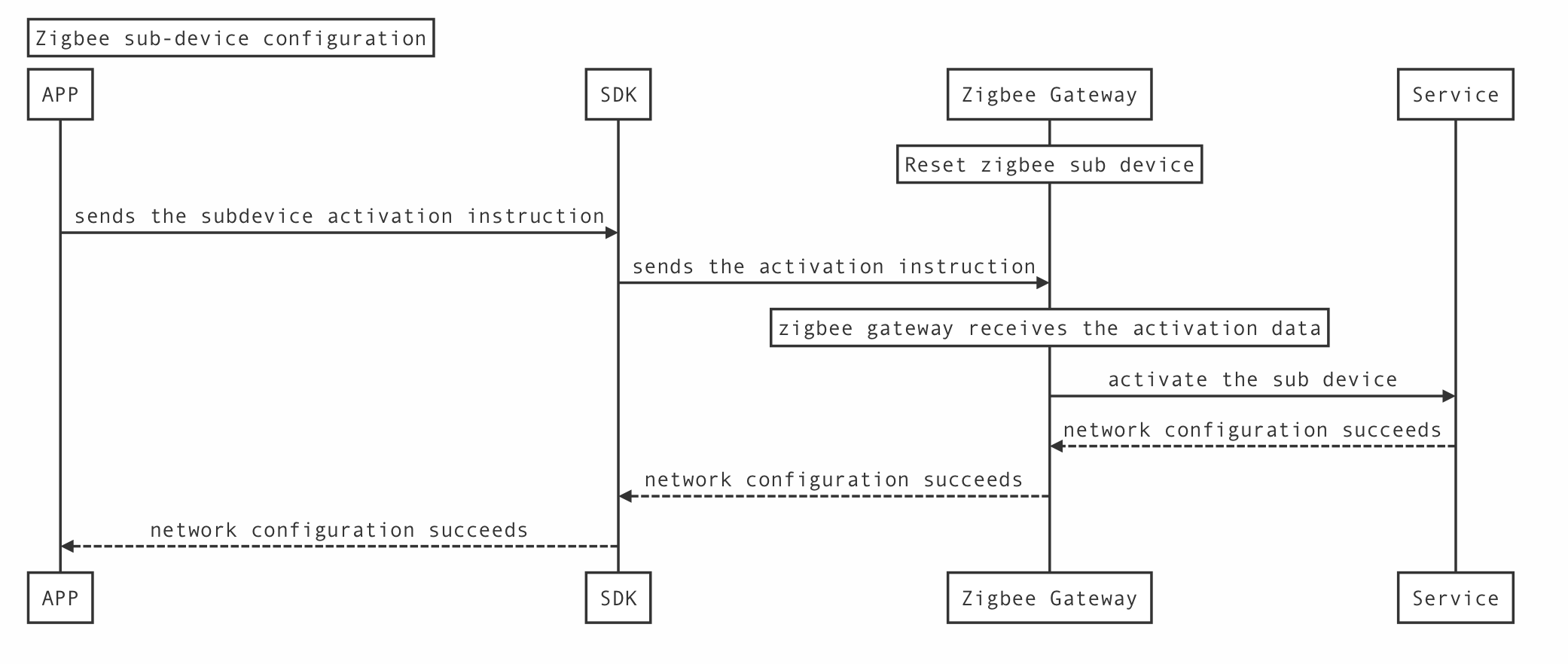
The sub-device configuration network can only be initiated when the gateway device cloud is online, and the sub-device is in the network configuration state. The following uses the Zigbee gateway sub-device as an example to introduce the configuration network business process
TuyaGwSubDevActivatorBuilder builder = new TuyaGwSubDevActivatorBuilder()
        .setDevId(mDevId)
        .setTimeOut(timeout)
        .setListener(new ITuyaSmartActivatorListener() {

                @Override
                public void onError(String errorCode, String errorMsg) {

                }

                @Override
                public void onActiveSuccess(DeviceBean devResp) {

                }

                @Override
                public void onStep(String step, Object data) {

                }
            }
        ));
Parameters
| Parameters | Description |
|---|---|
| mDevId | Setting the gateway ID |
| timeout | Setting the time-out period for network configuration |
ITuyaActivator mTuyaGWActivator = TuyaHomeSdk.getActivatorInstance(). newGwSubDevActivator(builder);
// Start network configuration
mTuyaGWActivator.start();
// Stop network configuration
mTuyaGWActivator.stop();
// Destroy
mTuyaGWActivator.onDestory();
This feature is only available for devices connected to the Internet

Map<String, Object> postData = new HashMap<>();
//get url by scanning the QR code
postData.put("code", url);

TuyaHomeSdk.getRequestInstance().requestWithApiNameWithoutSession("tuya.m.qrcode.parse", "4.0", postData, String.class, new ITuyaDataCallback<String>() {
    @Override
    public void onSuccess(String result) {
      //get uuid from result
      Log.i("TAG" , result);
    }

    @Override
    public void onError(String errorCode, String errorMessage) {
        Log.i("TAG" , errorCode);
    }
});
TuyaQRCodeActivatorBuilder builder = new TuyaQRCodeActivatorBuilder()
        .setUuid(uuid)
        .setHomeId(homeId)
        .setContext(mActivity)
        .setTimeOut(timeout)
        .setListener(new ITuyaSmartActivatorListener() {

                @Override
                public void onError(String errorCode, String errorMsg) {

                }

                @Override
                public void onActiveSuccess(DeviceBean devResp) {

                }

                @Override
                public void onStep(String step, Object data) {

                }
            }
        ));
Parameters
| Parameters | Description |
|---|---|
| uuid | Device Uuid |
| homeId | Family ID, please refer to the family management section for details |
| timeout | Setting the time-out period for network configuration, The default is 100s |
ITuyaActivator mTuyaActivator = TuyaHomeSdk.getActivatorInstance().newQRCodeDevActivator(builder);
// Start network configuration
mTuyaActivator.start();
// Stop network configuration
mTuyaActivator.stop();
// Destroy
mTuyaActivator.onDestory();
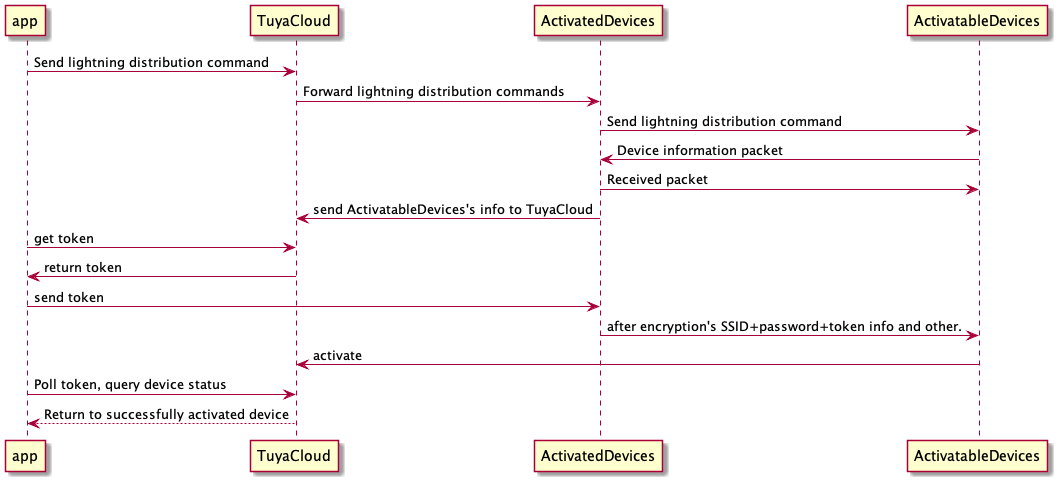
Parameter Description
| Parameter | Type | Description |
|---|---|---|
| devIds | List |
The devId set of configured network devices |
| serverTimeout | long | second |
| clientTimeout | long | second |
| ITuyaLightningSearchListener | Callback | Lightning Search callback |
TuyaHomeSdk.getActivatorInstance().newLightningActivator().startSearch(devList, serverTimeout, clientTimeout, new ITuyaLightningSearchListener() {
            @Override
            public void onSearchResponse(LightningSearchBean bean) {
                //search result callback
            }
        });
Parameter Description
| Parameter | Type | Description |
|---|---|---|
| lightningSearchBeanList | List |
Lightning devices that have been searched |
| token | String | Activation key required for network distribution |
| timeout | Int | Network timeout period, unit ms, 120s recommended |
| ITuyaDevActivatorListener | Callback | Network distribution result callback |
Obtain token
Before starting the network configuration, the SDK needs to obtain the network distribution Token from Tuya Cloud in the online state. The validity period of the Token is 10 minutes, and it will become invalid after the configuration is successful (the network needs to be re-obtained again).
Parameter Description
| Parameter | Type | Description |
|---|---|---|
| homeId | String | Family id, refer to the chapter on family management for details |
TuyaHomeSdk.getActivatorInstance().getActivatorToken(homeId, new ITuyaActivatorGetToken() {
    @Override
    public void onSuccess(String token) {

    }

    @Override
    public void onFailure(String errorCode, String errorMsg) {

    }
});
TuyaHomeSdk.getActivatorInstance()
        .newLightningActivator()
        .startActive(new TuyaLightningDevActivatorBuilder()
                .setLightningSearchBeanList(lightningSearchBeans)
                .setTimeOut(60 * 1000)
                .setToken(token)
                .setListener(new ITuyaDevActivatorListener() {
                    @Override
                    public void onError(String errorCode, String errorMsg) {

                    }

                    @Override
                    public void onActiveSuccess(DeviceBean devResp) {

                    }
                }));
Scan the QR code of the NB device to activate.
Scanning the QR code of NB device
get device id using common interface.
Scan the QR code of the device to get the url, and then get the id through the general interface
Common interface call documentation and code examples
Common interface call documentation and code examples
Parameter Description
| Key | Value |
|---|---|
| apiName | tuya.m.qrcode.parse |
| version | 4.0 |
| postData | {“code”:url} |
NB device activate
Parameter Description
| Key | Value |
|---|---|
| apiName | tuya.m.nb.device.user.bind |
| version | 1.0 |
| postData | {“hid”:id,“timeZone”:String} |
| gid | homeId |
For Bluetooth device configuration, you can refer to the document BLE.